Knowing your motherboard model can be very useful. Whether you want to upgrade your PC, install new drivers, or check hardware compatibility, having this information can save you time and prevent problems.
Many users do not know which motherboard is inside their computer. The good news is that Windows provides simple ways to find this information without opening the PC case. You can also use a free tool if Windows does not display the details correctly.
What is a motherboard?
The motherboard is one of the most important parts of a computer. It connects all major components, including the processor, memory, storage drives, graphics card, and other hardware.
Every command you give your computer passes through the motherboard. It helps different components communicate with each other and also distributes power where needed. Without a motherboard, the computer cannot function.
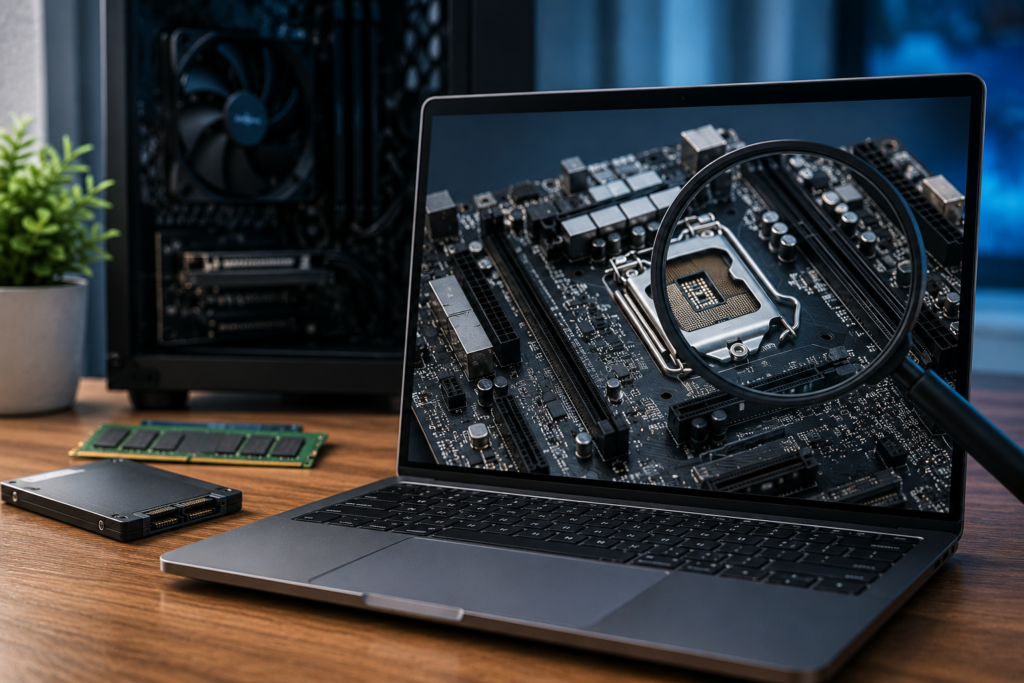
Why should you know your motherboard model?
There are several reasons why knowing your motherboard model is important:
- Check compatibility before buying new hardware
- Download the correct drivers
- Update the BIOS safely
- Upgrade memory or storage without guesswork
- Troubleshoot hardware issues more easily
Having the exact model number helps ensure that any new component works properly with your system.
How to find your motherboard model using Windows
Windows includes a built-in tool that can display motherboard information.
Follow these steps:
- Press Windows + R on your keyboard.
- Type msinfo32 and press Enter.
- The System Information window will open.
- Look for BaseBoard Product to see your motherboard model.
- You can also check BaseBoard Manufacturer to see the brand.
This method is quick and does not require any additional software.
What if Windows does not show the motherboard model?
In some cases, Windows may not display the motherboard information correctly. If that happens, you can use a free tool called CPU-Z.
How to check your motherboard model with CPU-Z
- Download CPU-Z from the official website.
- Install the software on your computer.
- Open CPU-Z.
- Click the Mainboard tab.
- Look for Model to find your motherboard model number.
CPU-Z also provides information about your processor, memory, and other hardware components.
Final thoughts
Finding your motherboard model is easier than many people think. The built-in Windows System Information tool is usually enough for most users. If it does not show the details, CPU-Z is a reliable alternative that provides complete hardware information.
Knowing your motherboard model can make upgrades, driver updates, and troubleshooting much easier. It is a simple piece of information that can help you make better decisions when maintaining or improving your PC.