Nothing is more frustrating than buying a game, downloading several gigabytes of data, and then discovering that your computer cannot run it properly. Slow performance, crashes, and poor graphics can quickly ruin the experience.
The good news is that it is easier than ever to check if a game will run on your PC before spending any money. By comparing your computer’s hardware with a game’s requirements, you can avoid disappointment and make better purchasing decisions.
In this guide, you will learn how to check game compatibility, understand system requirements, and find out whether your PC is ready for the latest games.
Why it is important to check game requirements
Modern games demand more powerful hardware than ever before. While some titles can run on older systems, many new releases require stronger processors, graphics cards, and more memory.
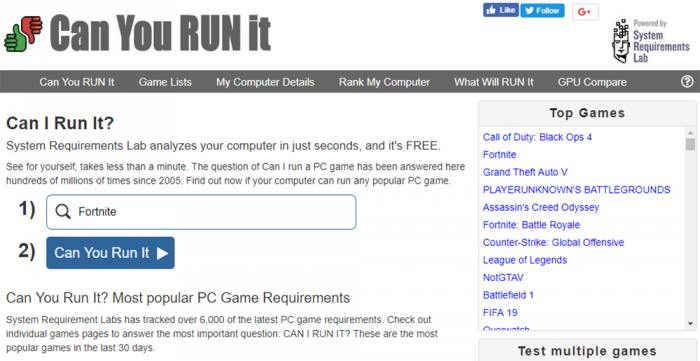
Checking compatibility before buying a game helps you:
- Avoid wasting money on games your PC cannot handle
- Understand what performance to expect
- Identify hardware upgrades that may be needed
- Save time by avoiding unnecessary downloads
- Make smarter purchasing decisions
A few minutes of research can prevent hours of frustration later.
Understanding minimum and recommended requirements
When looking at a game’s specifications, you will usually see two sets of requirements.
Minimum requirements
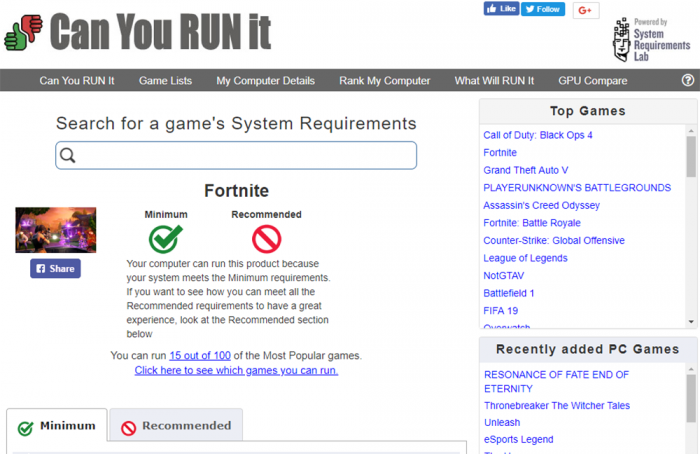
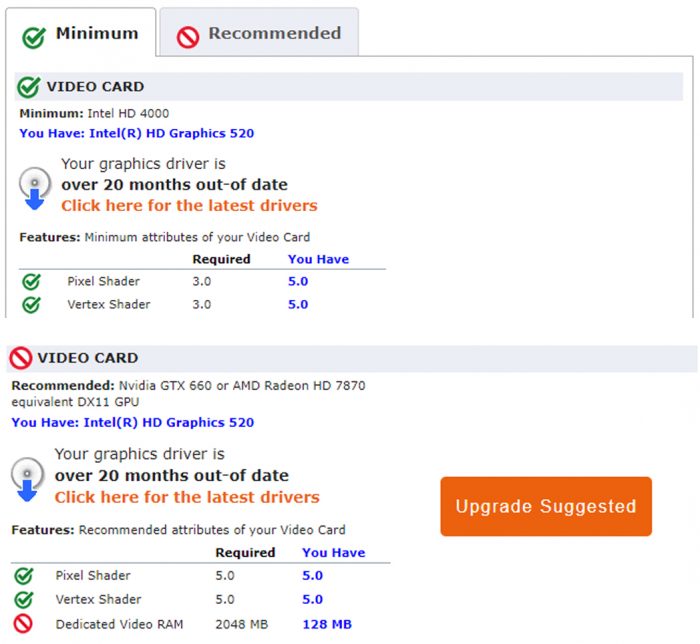
These are the lowest specifications needed to launch and play the game. If your PC only meets the minimum requirements, the game may run with lower graphics settings and reduced performance.
Recommended requirements
These specifications provide a better gaming experience. Meeting the recommended requirements often means smoother gameplay, higher frame rates, and improved visual quality.
For the best experience, aim to meet or exceed the recommended requirements whenever possible.
How to check if a game will run on your PC
There are several ways to compare your computer’s hardware with a game’s requirements.
Use an automatic compatibility checker
One of the easiest methods is to use an online compatibility tool. These services scan your computer and compare its hardware with the requirements of a selected game.
Typically, the process is simple:
- Visit a game compatibility website.
- Search for the game you want to play.
- Run the system detection tool if required.
- Wait for the scan to complete.
- Review the results.
The tool will usually tell you whether your system meets the minimum requirements, recommended requirements, or falls short in certain areas.
Check your PC specifications manually
If you prefer not to install any software, you can check your PC specifications yourself.
On Windows, you can view important hardware information by opening the System Information tool or checking your settings menu.
Pay attention to:
- Processor (CPU)
- Graphics card (GPU)
- Installed memory (RAM)
- Operating system version
- Available storage space
Once you have these details, compare them with the requirements listed on the game’s official store page.
The most important hardware components for gaming
Not every component affects gaming performance equally. Understanding the key parts of your PC can help you determine whether a game is likely to run well.
Graphics card
The graphics card is responsible for rendering game visuals. It is often the most important component for gaming performance.
A weak graphics card may cause low frame rates, visual glitches, or prevent certain games from running at all.
Processor
The processor handles calculations and game logic. Strategy games, simulation games, and large open-world titles often place heavy demands on the CPU.
RAM
Memory allows your system to manage game data efficiently. Insufficient RAM can lead to stuttering, longer loading times, and poor overall performance.
Storage
Many modern games require significant storage space. Solid-state drives (SSDs) can also improve loading times compared to traditional hard drives.
What to do if your PC does not meet the requirements
Failing to meet a game’s requirements does not always mean you cannot play it.
Depending on the situation, you may be able to:
Lower graphics settings
Reducing visual settings can improve performance and make demanding games playable on older hardware.
Close background applications
Running fewer programs in the background can free up system resources and improve game performance.
Upgrade specific components
Sometimes a single upgrade, such as adding more RAM or installing a newer graphics card, can make a significant difference.
Consider cloud gaming
Some cloud gaming services allow you to play demanding games without relying entirely on your local hardware.
Common mistakes gamers make
Many players make simple mistakes when checking compatibility.
One common error is focusing only on the processor while ignoring the graphics card. Another is looking only at minimum requirements and expecting maximum settings performance.
It is also important to ensure that your operating system and graphics drivers are up to date, as outdated software can cause problems even when the hardware is capable.
Tips for buying games with confidence
Before purchasing any game, take a few extra steps:
Read recent user reviews
Players often mention performance issues and hardware requirements in reviews.
Watch gameplay videos
Videos can help you understand how the game performs on hardware similar to your own.
Check official system requirements
Always rely on official requirements whenever possible rather than estimates from unofficial sources.
Compare recommended specifications
Meeting recommended requirements usually provides a much better experience than simply meeting the minimum.
Conclusion
Learning how to check if a game will run on your PC can save you money, time, and frustration. By understanding system requirements, comparing them with your hardware, and using compatibility tools when needed, you can make smarter decisions before purchasing a game.
Whether you are planning to play the latest blockbuster release or an older classic, taking a few minutes to check if a game will run on your PC ensures you get the best possible gaming experience without unpleasant surprises.